

BeeChat Step by Step Guide
How to Chat with BeeChat
A Step-by-Step Guide to Getting Verified on BINUS’ AI Chatbot
Meet BeeChat ?
BeeChat is BINUS’ official AI-powered chatbot, built to help employees quickly find information about Finance or Human Capital related questions, all through WhatsApp. Before you can start chatting with Bee, you’ll need to complete a quick one-time email verification. This guide walks you through the entire process, from opening the chat to getting verified, so you know exactly what to expect.
| Good to know
This verification step only happens the first time you chat with BeeChat. Once verified, you can continue chatting with Bee anytime. |
Step-by-Step Guide
Step 1: Access BeeChat
You can start a conversation with BeeChat in two ways:
- Click this link: https://binus.app/hi-beechat
- Or chat directly via WhatsApp: https://wa.me/+6282147278910
Either link will open a WhatsApp chat window with the BeeChat BINUS account.
Step 2: Say Hi to Bee
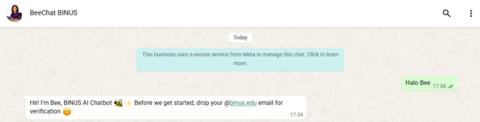
Send any greeting (e.g. “Halo Bee”) to start the conversation. Bee will introduce itself and ask you to provide your @binus.edu email address for verification.
Bee greets you and asks for your @binus.edu email.
Step 3: Enter Your BINUS Email
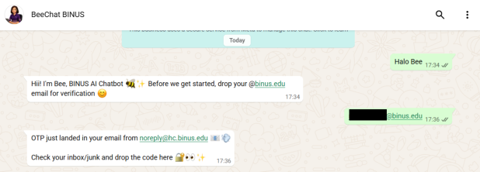
Reply with your official email address. Make sure it uses the @binus.edu domain — Bee will not accept personal or non-institutional email addresses. Once received, Bee will automatically send a One-Time Password (OTP) to that email.
Enter your @binus.edu email address to receive the OTP.
Step 4: Check Your Email for the OTP Code
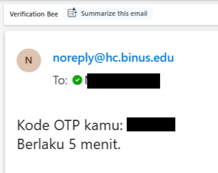
Open your inbox (or check your Junk/Spam folder if it doesn’t appear right away). You should receive an email from noreply@hc.binus.edu with the subject “Verification Bee”, containing your OTP code.
Sample verification email containing the OTP code.
| OTP Rules
The OTP is valid for 5 minutes after it’s sent. You have a maximum of 3 attempts to enter the correct OTP. |
Step 5: Send the OTP Back to BeeChat
Copy the OTP code from your email and send it back in the WhatsApp chat with Bee. Make sure to enter it within the 5-minute window and double-check the digits before sending.
Step 6: Verification Complete!
If the OTP you entered matches, Bee will confirm that your verification was successful. From this point on, you’re free to ask Bee anything you need help with.
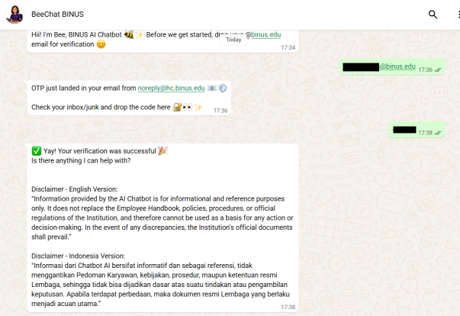
Verification successful — you’re ready to chat with BeeChat.
A Quick Disclaimer
Alongside the success message, Bee also shares an important disclaimer worth keeping in mind:
| English Version
“Information provided by the AI Chatbot is for informational and reference purposes only. It does not replace the Employee Handbook, policies, procedures, or official regulations of the Institution, and therefore cannot be used as a basis for any action or decision-making. In the event of any discrepancies, the Institution’s official documents shall prevail.” Indonesian Version “Informasi dari Chatbot AI bersifat informatif dan sebagai referensi, tidak menggantikan Pedoman Karyawan, kebijakan, prosedur, maupun ketentuan resmi Lembaga, sehingga tidak bisa dijadikan dasar atas suatu tindakan atau pengambilan keputusan. Apabila terdapat perbedaan, maka dokumen resmi Lembaga yang berlaku menjadi acuan utama.” |
Happy chatting with Bee!